




A guide to accounts payable automation for mid-market finance teams

Accounts payable (AP) automation replaces manual invoice entry, email approvals and spreadsheet payment runs with software that captures invoices, routes them for approval, enforces your policy, pays vendors and syncs every record to your ERP.
For mid-market finance teams, the best AP automation software captures invoices without re-keying, applies multi-level approval rules and lets you pay vendors by ACH or virtual card. It should also stop a bad payment before money moves and sync cleanly with your accounting system.
PEX Bill Pay lets you create, approve and pay bills from the same platform where you already manage the rest of your spend. You can pay vendors by virtual card and earn up to 1% back on qualifying payments, or pay by ACH in the same flow. Bill Pay comes free with any PEX Credit Expense or Prepaid Expense account.
Who this guide is for
This guide is for finance teams at companies with roughly 250 to 1,000 employees. At that size, AP has usually outgrown a shared inbox and a spreadsheet, but a full enterprise procure-to-pay suite is more than your team needs. If a few of these sound familiar, you’re in the right place:
- Invoices show up by email, vendor portal and paper, and someone keys each one in by hand
- Approvals depend on one or two people who are often traveling or out of the office
- Department heads buy outside the process and AP only finds out at month-end
- Close drags on because coding and reconciliation happen after the fact
- Audit prep means hunting down receipts and approvals across several systems
What is accounts payable automation?
AP automation is software that runs the invoice-to-payment cycle with very little manual work. A complete workflow covers six steps and each one takes a task off your team’s plate:
- Capture: Invoices come in by email, upload or vendor portal, and the system reads them for you
- Coding: The system suggests GL accounts, departments and projects based on your rules and past coding
- Matching: Where your policy requires it, invoices are checked against purchase orders or receipts (two-way or three-way match)
- Approval: Each invoice is routed by rules you set, such as amount, department or vendor
- Payment: You pay each vendor the way that fits best, whether that’s ACH or virtual card
- Sync and reconciliation: Every record posts to your ERP or accounting system with its approvals and documents attached
How AP automation works, step by step
Automating AP removes manual work at six points: invoice intake, coding, approval, payment, reconciliation and audit. Here’s what changes at each stage, plus what to ask about when you sit in on a demo.
| Step | Manual process | Automated process | What to verify in a demo |
| Invoice intake | Your team opens emails and keys in the data | Invoices are captured and read automatically | How accurate it is on your real invoices, including line items |
| Coding | Someone picks accounts from memory | Rules and AI suggest GL coding | How the system learns when you correct it |
| Approval | Long email chains and chasing people down | Rule-based routing with reminders and delegates | Thresholds, backup approvers and mobile approval |
| Payment | A separate bank portal and check runs | Pay by ACH or virtual card from one workflow | Which payment methods are supported and how fast they settle |
| Reconciliation | Spreadsheet matching at close | Automatic matching and posting | Whether the ERP sync runs in real time or in batches |
| Audit | Pulling documents from many places | One record with every approval and file | How deep the audit trail goes and how easy it is to export |
What to look for in AP automation software (mid-market checklist)
The best AP automation software for a mid-market team offers flexible approvals, controls before payment, two-way accounting sync and clear pricing. They’ll help you compare platforms on what matters for a team your size.
- Approval flexibility: Can you set multi-level approvals by amount, department, entity or vendor, with delegation and an audit log?
- Controls before payment: Does the platform stop a bad payment before it happens, or does it only flag the problem afterward?
- Payment methods: Can you pay by ACH and virtual card in one flow? Virtual cards matter if you want rebates or single-use controls.
- ERP depth: Is the sync two-way with your system, whether that’s NetSuite, Sage Intacct, QuickBooks or Microsoft Dynamics? Make sure vendors, GL accounts, classes and attachments all sync, not just an export file.
- Multi-entity support: Can each entity have its own approval chain, currency and bank account if you need them?
- Receipts and documentation: Are the required documents attached to each payment instead of sitting in someone’s inbox?
- Reporting: Can you see spend by vendor, department and policy exception without exporting to a spreadsheet?
- Fraud and compliance controls: Look for vendor verification, duplicate detection, role-based permissions and segregation of duties.
- Implementation effort: How long does it realistically take to go live, who handles setup and what does the vendor take care of for you? Ask each vendor for a reference customer your size.
- Total cost: Add up license fees, per-transaction fees, payment fees and any ERP connector charges so you can compare the full picture.
Invoice approval workflow: how to set it up
A strong invoice approval workflow sets approval tiers by amount, separates duties, names backup approvers and escalates invoices that stall. If you only fix one thing this year, fix approvals, because stalled approvals are where late payments and month-end surprises usually start:
- Set tiers by amount: Under a low threshold, the department head approves. In the mid-range, add a finance manager. Above a higher threshold, bring in the controller or CFO
- Separate duties: The person who adds a vendor shouldn’t approve that vendor’s invoices or release the payment
- Name backup approvers: Give every approver a delegate so invoices keep moving when someone is out
- Set reminders and escalation: Escalate any invoice that sits longer than a set number of days
- Attach the paperwork: Require a PO, contract or receipt wherever your policy calls for one
- Review exceptions monthly: Track overrides, late approvals and duplicate invoices so you can tighten the process over time
Paying vendors: ACH or virtual card
ACH works best for large or recurring payments to vendors who don’t take cards, while virtual cards work best when you want tighter controls and rebates.
| Method | Best for | Watch for |
| ACH | Large or recurring payments to vendors who don’t take cards | Slower to confirm, and a fraud risk if bank details change without verification |
| Virtual card | Vendors that accept cards, when you want tighter controls and rebates | Some vendors add surcharges or decline cards on large invoices |
When you pay by virtual card, you get a single-use card number for that payment, which limits your exposure and ties each payment to a set amount. ACH moves funds straight from your bank account to your vendor’s bank account.
With PEX Bill Pay, you choose the method that works best for each vendor and earn up to 1% back on qualifying virtual card payments. PEX creates virtual cards for you automatically at no cost, and each plan includes a set number of free ACH transactions per month, with additional ACH transactions at $1 each (see pricing).
How PEX approaches AP automation
Most AP tools get to work once a bill arrives. PEX starts earlier with controls on the spend itself, then takes the manual work that follows off your team’s plate. Here’s how that comes together:
- Controls before spend: Real-time rules and flexible permissions apply at the point of purchase, so transactions are already compliant by the time they reach your accounting system
- Receipts and coding: AI-powered receipt capture and matching, plus rules and AI-assisted GL coding, cut down on the cleanup your team does at close
- AI-assisted bill reading: Forward invoices to your PEX inbox and let AI fill in the details
- Bill Pay with built-in approvals: Every vendor payment runs through your configured approval hierarchy and AI-enforced policies. You get a full audit trail of who approved each bill, when and how it was paid.
- One platform: Cards, employee expenses, vendor payments and approval workflows all live in one PEX dashboard, so you have one system of record and no separate login for AP. Bill Pay sits next to PEX card programs, including the PEX Visa® Prepaid Card, PEX Visa® Commercial Card and PEX Disburse Visa® Prepaid Card.
- Accounting sync: Every Bill Pay payment syncs automatically to QuickBooks Online through a two-way sync, so there’s no double entry.
The results show up in your team’s week. A Forrester Total Economic Impact™ study commissioned by PEX found that PEX automation tools saved each accounts payable specialist 20 hours per month at a composite organization, a 13% productivity gain. The same organization avoided hiring an additional accounts payable specialist in each of the three years studied as it grew.
What you can do with PEX Bill Pay
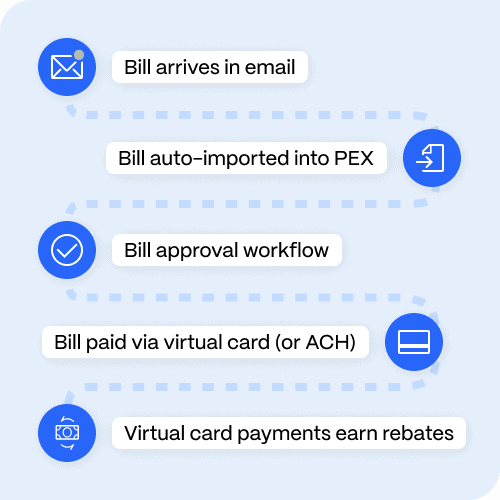
Here’s how the workflow runs in PEX, from invoice to payment:
- Create a vendor in seconds: Enter basic details and choose each vendor’s preferred payment method upfront, so you’re ready when it’s time to pay
- Add a bill without retyping it: Forward invoices straight to your PEX inbox, and PEX uses AI to read the vendor, amount and payment details for you
- Route it for approval: Each bill follows your approval hierarchy and AI-enforced policies, which keeps vendor payments in policy across every team
- Send the payment: Choose ACH or virtual card, confirm the details and send the payment instantly
- Track and sync: Follow payment status in real time while vendors and payment details sync to QuickBooks Online
How PEX compares with other options
Here’s how PEX compares with other platforms mid-market finance teams often consider. This comparison sticks to the facts and is upfront about where PEX may not be the best fit for your team.
| PEX | BILL | Ramp | Brex | Airbase by Paylocity | |
| Core strength | Cards, employee expenses, vendor payments and approval workflows in one dashboard | AP and AR automation, plus corporate cards through BILL Spend & Expense | Corporate cards, expense management and bill pay | Corporate cards, expense management, bill pay and business banking | AP automation, procurement, expense management and corporate cards |
| Virtual card vendor payments | Yes, up to 1% back on qualifying payments | Yes, free single-use virtual cards | Yes, one-time virtual cards or existing Ramp cards | Yes, one-time virtual cards | Yes |
| ACH vendor payments | Yes | Yes, including faster ACH options | Yes, standard and same-day ACH | Yes | Yes |
| Pricing and payment fees | Bill Pay is free with any PEX Credit Expense or Prepaid Expense account. Virtual card payments are free, and each plan includes free ACH payments every month, then $1 each. | AP plans start at $49 per user per month. ACH payments are $0.59 each and mailed checks are $1.99 each, while virtual card payments are free. | The core platform is free. Bill Pay charges $0.59 per standard ACH payment and $1.99 per check, waived when paying from a Ramp Checking Account. | Essentials is $0 per user per month and Premium is $12 per user per month. Brex charges no fees on ACH, check or wire payments sent from a Brex business account. | Custom pricing by quote |
| Card types | Prepaid, charge, disburse and virtual | Physical and virtual corporate charge cards | Physical and virtual corporate cards | Physical and virtual corporate cards | Physical and virtual corporate cards |
| Accounting and ERP integrations | Bill Pay: two-way sync with QuickBooks Online. Cards: [CONFIRM integration list] | Two-way sync with QuickBooks Online and Xero on Team plans and up, with NetSuite, Sage Intacct and Microsoft Dynamics on the Enterprise plan | NetSuite, Sage Intacct, QuickBooks, Xero, Microsoft Dynamics, Acumatica, Workday and more, with some on Plus or Enterprise plans | NetSuite, QuickBooks Online and Desktop, Sage Intacct and Xero, with Workday and Oracle Fusion on higher plans | NetSuite, Sage Intacct and QuickBooks, among others |
| Best fit | Mid-market companies in construction, nonprofit, education, healthcare. Media & entertainment and business & consumer services that want cards, expenses and AP in one dashboard | Teams that need a dedicated AP and AR platform and can absorb per-user plans starting at $49 a month plus per-payment fees | Teams that want a broad integration list and can absorb $0.59 per ACH payment and $1.99 per check, unless they also bank with Ramp Checking, with many ERP integrations limited to Plus or Enterprise plans | Teams willing to bank with Brex, since fee-free bill payments only apply to payments sent from a Brex business account | Companies already on Paylocity for HR and payroll that are comfortable with quote-only pricing |
*Competitor details are based on each company’s public product and support documentation at the time of publishing.
Mid-market use cases
The right priorities depend on where your biggest headaches come from. Here are three common situations.
- Distributed spending across many managers: Your team leads buy software, travel and services across departments, and AP doesn’t see it until the statement lands. Focus on controls before spend, receipt capture and card-based payments so you can see spend as it happens. With PEX, vendor payments run through the same dashboard and approval hierarchy as your card spend, so you can control vendor payments across every team
- Heavy vendor invoice volume with a small AP team: Your team spends most of the week keying in invoices and chasing approvals. Focus on invoice capture, approval routing and paying by ACH or virtual card from one workflow. With PEX Bill Pay, your team forwards invoices to a PEX inbox and PEX uses AI to read the vendor, amount and payment details, so nobody has to key them in
- Multiple entities and an ERP your auditors rely on: Your records need to hold up across every entity. Focus on two-way ERP sync, entity-level approvals and an audit trail you can export. PEX Bill Pay offers a two-way sync with QuickBooks Online today, so check that your accounting system is supported before you plan a rollout.
Implementation plan: first 90 days
You don’t need to switch everything over at once. Most teams get the best results by starting with a baseline, piloting with one group and then rolling out.
- Weeks 1 to 2, set your baseline: Count your invoices per month, the average days from receipt to payment, the share of invoices coded correctly the first time and your days to close. These become your before-and-after numbers.
- Weeks 2 to 4, design your process: Document your approval tiers, vendor onboarding rules and payment method policy
- Weeks 4 to 6, connect your systems: Link your ERP, bank accounts and user roles, then migrate active vendors and verify their bank details
- Weeks 6 to 8, run a pilot: Start with one department or entity and compare the results with your baseline
- Weeks 8 to 12, roll it out: Add the rest of your departments, retire the old email approval path and set up a monthly exception review
Book a demo and see how PEX gives your finance team one place to manage cards, expenses and vendor payments.
FAQs
What is the best accounts payable automation software for mid-market companies?
The best option depends on your ERP, your invoice volume and how much control you want before a payment goes out. Look for multi-level approvals, several payment methods, two-way ERP sync and controls that act before money moves. PEX is a strong fit for teams that want AP built into the same dashboard as their cards, expenses and approval workflows, with a two-way QuickBooks Online sync for Bill Pay.
How do I automate vendor invoice approvals and payments?
Start by capturing invoices automatically, then set approval tiers by amount and department and name a backup for every approver. From there, pay vendors from the same system by ACH, virtual card or check. Sync each approved record to your ERP so the approvals and documents stay attached.
Which spend management platforms include bill pay and corporate cards?
PEX offers prepaid, charge, disburse and virtual cards alongside Bill Pay, so your vendor payments and card spend share one set of controls in one dashboard, with no separate login or portal for AP.
Can I pay vendors with a virtual card and earn cash back?
Yes, as long as the vendor accepts card payments. With PEX Bill Pay, you can pay by virtual card and earn up to 1% back on qualifying payments, or pay by ACH in the same flow. Some vendors add a surcharge for card payments, so it’s worth checking before you pay.
What is the difference between AP automation and spend management?
AP automation focuses on vendor invoices and payments. Spend management covers employee and department spending, such as cards, receipts and policies. Platforms like PEX connect the two so your controls and records stay consistent across both.
Can I pay bills from different bank accounts with PEX Bill Pay?
Yes. You just need to connect your business bank accounts to PEX.
How much can I pay vendors per day with PEX Bill Pay?
You can pay up to $25,000 in vendor payments per day per PEX business account. If your team needs more, you can contact PEX about your account needs and request a higher daily limit.



Opinions, advice, services, or other information or content expressed or contributed here by customers, users, or others, are those of the respective author(s) or contributor(s) and do not necessarily state or reflect those of The Bancorp Bank, N.A. (“Bank”). Bank is not responsible for the accuracy of any content provided by author(s) or contributor(s).